Scheduled jobs is the platform settings list where staff configure recurring background work (courier weekly payouts, GPS retention, and future handlers registered in code). Each row is one instance bound to a handler; you do not create new handler types from the UI.
Screen overview
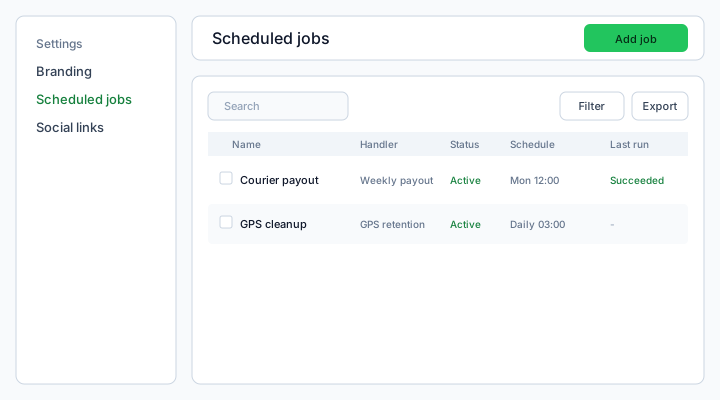
The table shows every job instance: Name, Handler (human label from the code catalog), Status, Schedule (human summary plus cron in monospace), Last run, and Next run. System jobs show a System badge; their checkboxes and Delete actions are disabled.
What each column means
Status
- Active — BullMQ runs the job on the cron below; Next run shows the upcoming UTC timestamp when applicable.
- Paused — No automatic runs; Next run is blank. Operators with update permission can still Run now.
- Disabled — No automatic or manual runs until status returns to Active or Paused.
Schedule
Schedule summary is computed server-side from cron + timezone (for example “Mon 12:00 UTC”). The muted cron expression is the source of truth (minute hour day month weekday).
Last run
Shows the most recent execution: Succeeded, Failed, or Running, with timestamp. Failed runs may include a tooltip with failureReason from the worker.
Next run
Empty when the job is Paused or Disabled, or when the scheduler has no upcoming fire time.
Actions
Add job
- Permission:
platform.scheduled_jobs.create - Opens create form (S-114) for a handler not yet instantiated (v1: one instance per handler).
Run now
- Permission:
platform.scheduled_jobs.update - POST manual run; hidden/disabled for Disabled jobs.
Delete / bulk delete
- Permission:
platform.scheduled_jobs.delete - System rows skipped; 403 if all selected are system.
Bulk bar appears when you select deletable rows: N selected, Clear selection, Delete selected.
Permissions
- Read (
platform.scheduled_jobs.read) — list and open detail. - Create — Add job + empty-state CTA.
- Update — Save policy, Run now.
- Delete — row delete and bulk delete (non-system only).
Assign via Access → Roles / Users.
Steps
- Open Settings → Scheduled jobs (
/platform/settings/scheduled-jobs). - Filter by Status or Handler; search by name.
- Click a row or Open to edit cron, timezone, parameters, and status.
- Use Run now for a one-off execution (incident replay or smoke test).
- Export visible columns to CSV/Excel/PDF from the table toolbar.