Social links is the platform settings form that controls the Follow IVPrior icons in every footer that uses them (homepage Site Links and admin auth footer). Turning a network off hides it everywhere; changing the URL updates where the icon opens.
Screen overview
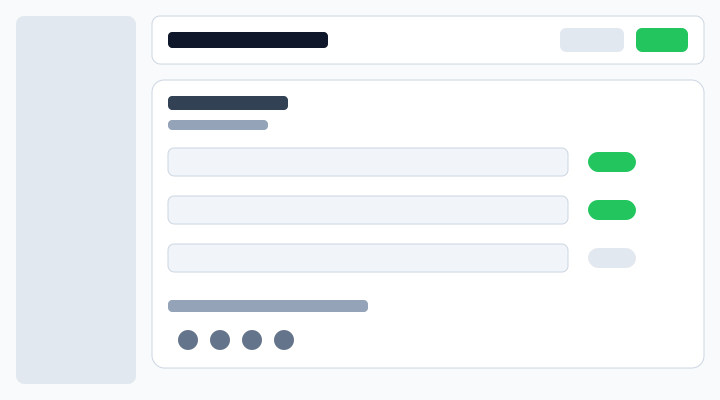
Each row is one fixed network (Instagram, Facebook, X, LinkedIn, YouTube, TikTok): the icon and name identify the network, the text field is the profile URL, and the switch on the right (aligned with the URL field) shows or hides that icon in footers.
What each control means
Show switch
On means the network appears in Follow IVPrior footers for visitors. Off means it is omitted from the public list — no broken icon, no placeholder. You can leave all networks off if you do not want social icons at all.
Profile URL
The https link opened when someone clicks the icon. Required only when the switch is On. Example: https://www.instagram.com/ivprior. Invalid or empty URLs while enabled block Save.
Footer preview
A compact strip of currently enabled icons so you can confirm what visitors will see before Save.
Why this matters
Marketing and ops often need to swap a handle or temporarily hide a channel without a code deploy. This screen is the single source of truth for those footers.
Permissions
- Read (
platform.settings.social.read): open the page. - Write (
platform.settings.social.update): change switches/URLs and Save.
Assign either permission to any platform role or user via Access → Roles / Users.
Steps
- Open Settings → Social links (
/platform/settings/social-links). - Toggle networks on or off; edit URLs as needed.
- Check Footer preview.
- Click Save. Footers pick up the new config on the next load of the public social-links API.