Platform Roles group permissions into named sets that can be assigned to platform users. Each role has a stable code and a matrix of permissions that determine what a user can do in the admin console.
Overview
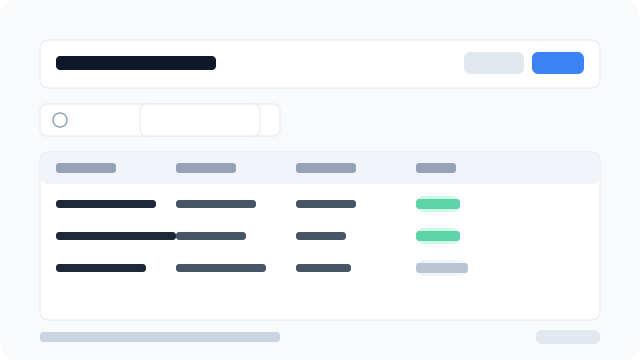
Figure: The Roles list showing code, name, permission count, status, and row actions.
What each field means
Code
A stable, unique identifier in UPPER_SNAKE_CASE (for example PLATFORM_SUPPORT). It is what guards and audit logs reference internally. IVPrior suggests it from the Name while you type, but it cannot be changed after the role is created — plan the name before saving.
Name
The human-readable label shown everywhere in the UI (for example "Support Agent"). You can rename a role at any time without affecting its Code or its assignments.
Permission matrix
The set of platform permissions this role grants, grouped by resource (for example platform.roles, platform.users). For each resource the wizard shows four CRUD columns — Read (view), Create (add), Update (edit), and Delete — plus a Special list for actions outside that set (for example impersonate). Every user who has this role effectively gets every permission checked in this matrix — see Platform Users for how role permissions combine with per-user overrides.
Status
- Active — enforced by the system; users with this role get its permissions.
- Inactive — ignored by guards. Users keep the role assignment, but it stops contributing permissions until you reactivate it.
Seed roles
PLATFORM_ADMIN, PLATFORM_SUPPORT, and PLATFORM_OPERATIONS ship with IVPrior. You can edit their name, description, status, and permission matrix, but they cannot be deleted — this guarantees the platform always has a way to grant admin access.
Add a role
- Go to Access → Roles in the sidebar.
- Click Add role.
- Fill in the Name — the Code is suggested automatically in UPPER_SNAKE_CASE.
- Optionally update the Code, add a Description, and set Status to Active.
- Click Next to go to the Permissions step.
- Check the permissions you want to grant this role. Use Select all CRUD to toggle Read/Create/Update/Delete for a resource; grant non-CRUD capabilities under Special.
- Click Finish to save.
Edit a role
- In the roles table, click the ⋮ menu on a row.
- Select Edit.
- Update the Name, Description, Status, or Permission matrix. The Code cannot be changed.
- Click Finish (or Save and close from the Cancel dialog if you have unsaved changes).
Changing the permission matrix on an existing role takes effect immediately for every user holding that role — there is no separate "publish" step.
Clone a role
- Click ⋮ → Clone on the source row.
- The wizard opens with Name pre-filled as
Copy of {name}and Code as{CODE}_COPY. - Adjust the details and permission matrix, then click Finish.
Cloning is useful for creating a narrower or broader variant of an existing role without rebuilding the matrix from scratch.
Delete a role
- Click ⋮ → Delete on the target row (or select several rows and use Delete selected).
- Confirm the deletion.
Seed roles (PLATFORM_ADMIN, PLATFORM_SUPPORT, PLATFORM_OPERATIONS) cannot be deleted. Roles with users assigned will show a blocked message — remove all user assignments first.
Export
Use the Export button to download the current list as CSV, Excel, or PDF, or copy it to the clipboard.
Permissions
Only platform users with platform.roles.read or a roles mutation permission (platform.roles.create / update / delete) can view this page. Mutation permissions are required to create, edit, clone, or delete roles.