Platform Users manages staff who can access the platform admin console. Each user has one or more roles plus optional permission overrides that grant or deny individual capabilities.
Overview
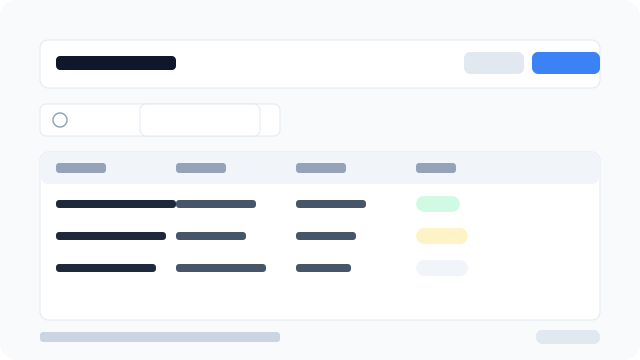
Figure: The Users list showing email, name, roles, status, and row actions.
What each field means
Roles
Every platform user needs at least one active role — see Platform Roles. Selecting a role in the permission matrix automatically checks every permission that role grants; you don't have to tick them one by one.
Overrides (GRANT / DENY)
After roles are applied, you can fine-tune the matrix for this specific user:
- GRANT — checking a permission that none of the user's roles include. Adds that one capability just for them.
- DENY — unchecking a permission that a role does include. Removes that one capability just for them, even though their role would normally grant it.
Overrides only exist where they differ from the role baseline — if a checkbox matches what the roles already grant, no override is stored for it. If you remove a role later, existing overrides are kept until you clear them manually.
Effective permissions
What the user can actually do: (permissions from all their roles) + GRANT overrides − DENY overrides. DENY always wins over any role that would otherwise grant the same permission.
Example: a user has role PLATFORM_SUPPORT (includes platform.users.read) and one override DENY platform.users.update plus GRANT platform.roles.read. Effective permissions = everything PLATFORM_SUPPORT grants, minus user updates, plus read access to roles.
Status
- Active — signed in with a password; normal access per their roles/overrides.
- Inactive — access blocked; the user keeps their roles and overrides but cannot sign in until reactivated.
- Invited — the set-password email was sent but not yet accepted. The user cannot sign in until they finish setup.
Invite a user
- Go to Access → Users in the sidebar.
- Click Invite user.
- Enter Email and Name, then click Next.
- Select one or more roles — their permissions are checked automatically.
- Customize the permission matrix if needed (extra checks become GRANT; unchecks become DENY).
- Click Finish to send the invite.
Edit a user
- Click ⋮ → Edit on a row.
- Update Name, User active (if not invited), Roles, or the permission matrix.
- Click Save or Save and close.
Row actions by status
Active
Edit · Deactivate · Delete
Inactive
Edit · Activate · Delete
Invited
Edit · Resend invite · Delete
You cannot deactivate or delete your own account. The last platform admin cannot be deleted.
Bulk actions
Select multiple rows to Deactivate selected or Delete selected. Your own row cannot be selected for bulk actions.
Export
Use Export in the table toolbar to copy, download CSV/Excel/PDF, or print the current list.
Permissions
Users with platform.users.read can view and export the list. Users with platform.users.create, update, or delete can invite, edit, activate/deactivate, resend invites, or delete as applicable.