Schedules (/app/scanner/schedules) let you automate IVPrior scans on a market calendar. Each schedule fires a ScanJob like Run scan, consuming one slot from your daily scan quota (maxAsyncRunsPerDay). Schedules are separate from your schedule count cap (maxScheduledJobs). IVPrior does not place trades.
Screen overview
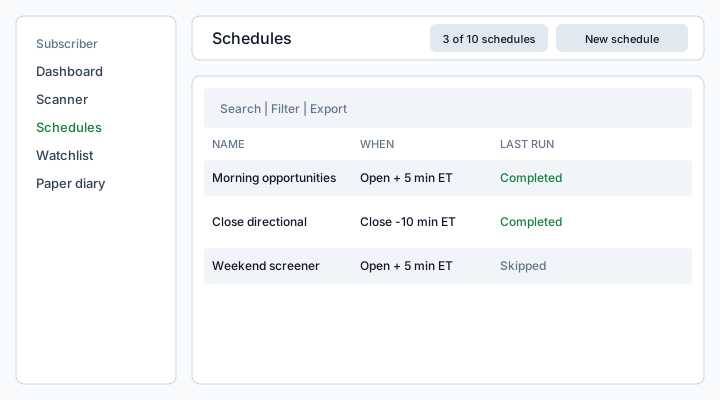
Figure: Schedules list — search, Filter, Export, quota badges, and New schedule in the page toolbar.
The list shows every schedule you own: name, mode, human-readable When label, Next run, Last run status, and Active/Paused.
- New schedule opens a three-step wizard (What · When · Notify).
- Row ⋮ actions: Run now, Edit, Pause/Resume, Delete.
- Toolbar badges show
{used}/{max} schedulesand{remaining}/{max} scans today.
What each column means
Name
Your label for the schedule. Click the name or Edit to change mode, universe, timing, or notifications.
Mode
Same modes as Run scan (Opportunities, Directional, Screener, Backtest, Bollinger, Analyze). Your Plan must include the mode or the schedule may pause with “mode not on plan”.
When
A readable summary of the preset or cron (for example “Market open + 5 min · weekdays ET”). Advanced cron is stored but summarized in the list.
Next run
The next planned fire in the schedule timezone. Paused schedules show —.
Last run
- Completed — a ScanJob was enqueued and finished (link opens scan results).
- Failed — engine or data error.
- Skipped — no ScanJob (daily quota, weekend/holiday with market-days-only, or lock).
- Running — fire in progress.
Status
- Active — eligible to fire on schedule.
- Paused — you paused it, you are over the plan schedule cap, or the mode is no longer entitled.
Plan limits
- Active schedules (
maxScheduledJobs): Lite 3, Plus 10, Premium unlimited. Paused schedules stay saved but do not use an active slot. Billing shows the current usage and cap; a plan override can change these defaults. - Daily scans (
maxAsyncRunsPerDay): shared by manual Run scan, Run now, and scheduled fires. A schedule slot is not an extra daily run.
Configure and correct a schedule
- Select New schedule and enter a name and scan settings in What.
- In When, select a preset or Advanced cron and a recognized timezone. For example,
35 9 * * 1-5runs at 09:35 Monday through Friday in that zone. Hour/minute values outside their ranges and zero steps are rejected. - Next checks the step before advancing. Save returns to any field needing correction; edit the field to clear its error.
- In Notify, choose the notification policy and save. For an existing schedule, this step also shows recent runs.
- In Billing, read Scheduled scans to see active usage against the cap. Unlimited has no percentage; after a downgrade, actual usage can exceed the cap until you pause or remove schedules.
US market days only skips weekends and the full-day NYSE holidays listed through 2027. The timezone observes daylight-saving offsets. The static calendar does not adjust the close preset for shortened trading sessions.
Help writing cron
In Advanced cron, press the ? icon next to Cron expression. The compact popup shows the five fields and ranges, a symbol legend, and one example. Full guide and more examples opens this article in a new tab. Opening or closing help does not change or save the schedule.
Write five numeric fields separated by spaces: minute (0–59), hour (0–23), day of month (1–31), month (1–12), and day of week (1 = Monday through 6 = Saturday; 0 or 7 = Sunday). Do not add seconds or a year. Names such as MON and shortcuts such as @daily are not supported.
*: any value in the field.,: a list;1,3,5selects those values.-: an inclusive range;1-5includes 1 through 5./: an interval;*/15means every 15 units starting at the field’s minimum. Use a positive step within the field’s range.
Examples in the selected timezone:
35 9 * * 1,2,3,4,5: 09:35, Monday–Friday.35 9 * * 1-5is equivalent.0 12 * * *: every day at 12:00.*/15 9-15 * * 1-5: every 15 minutes from 09:00 through 15:45, Monday–Friday.
All five fields must match; restricting both day of month and day of week requires both conditions to hold. With US market days only enabled, weekends and NYSE holidays are also skipped. Close help with Escape or by clicking outside the popup.
Notifications
On the Notify step you choose when to get inbox alerts (hits, failures, or every run). Push is planned for the mobile app.
Research tool only. Not financial advice or a broker order.