Audit logs is a history of actions in this workspace. Use it to see who changed a Location, order, user, or billing setting, when it happened, and what data moved. You never see events from another tenant, and you never see platform-only operations such as impersonation.
Screen overview
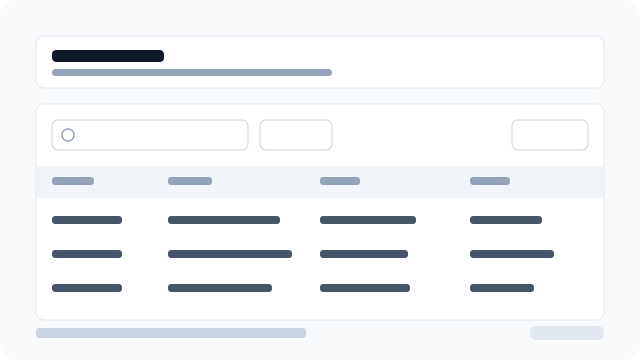
Figure: Audit list with search, filters, export, and four columns: When, Event, Actor, Entity.
What each column means
When
The timestamp stored on the audit row (createdAt). It is the moment the action was recorded, not when you opened the page.
Event
The catalog eventType (for example LOCATION_UPDATED or ORDER_CREATED). Event types are a fixed vocabulary written by use cases — they are not free-text labels.
Actor
Who performed the action. The row shows photo, full name, and email (initials if there is no photo). Guest checkouts show Guest; automated jobs show System. Unknown actor means the account was removed and no name or email could be resolved — the raw id is not shown as the title.
Entity
The resource that changed, as a functional label: Location name, order number (#1042), role name, product name, and so on — not the type plus a UUID. A second line adds context (email for people, Location name for an order). The UUID remains in Event detail only when you need it for support.
Why this matters
Without this viewer, staff had to ask platform support to reconstruct “who changed this.” The list stays inside your tenant: filters never include Platform only or another tenant’s id. Export downloads the rows on the current page, not a bulk SIEM dump.
Review an event
- Open Settings → Audit logs (or the header bell Logs tab, then View all logs).
- Search by event, actor, or entity text.
- Open Filter to narrow by event type, actor, entity type, or date range (
From/To). - Click a row to open Event detail. Close or Escape returns to the list and removes
eventIdfrom the URL. - Use Export to copy or download the visible page as clipboard, CSV, Excel, or PDF.
- If you have
audit.delete, select rows or open ⋮ → Delete, confirm the dialog, and the events are removed permanently.
If you open a link with an unknown eventId, the dialog shows Event not found — the row may have been outside your tenant or the id is invalid.