Active sessions shows every browser or device where your tenant account is still signed in. Use it to spot a device you no longer trust (an old laptop, a shared computer) and sign it out remotely.
Screen overview
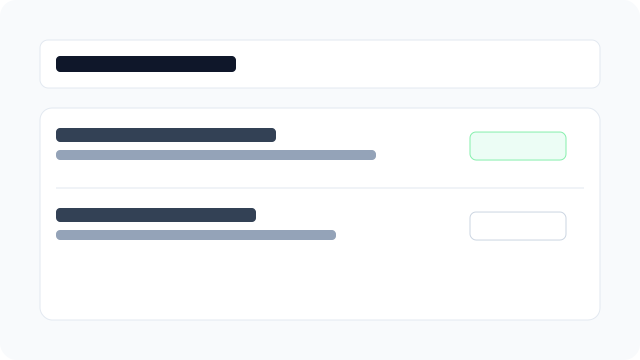
Figure: Session list with current device badge and remote sign-out actions.
What each row means
Device
A best-effort name derived from the browser and operating system that created the session (for example "Chrome on macOS"). If IVPrior can't detect it (older session, unusual client), it shows Unknown device — that's not a security problem by itself, just missing metadata.
IP address
A partial IP address for that session, shown for a quick sanity check ("is this my home network or somewhere else?"). It is not a precise location.
Last activity
How recently that session was used to call the API — a stale "3 weeks ago" session sitting next to recent ones is a good candidate to sign out.
Signed in
The date that session started (the original sign-in), separate from Last activity.
Current badge
Marks the session tied to the browser tab you're using right now. You cannot Sign out the current session from this list — use Sign out in the header instead (see the callout below).
Why this matters
Every sign-in creates a session tied to a refresh token. If you only ever close the browser tab without signing out, the session can stay valid until it naturally expires. Reviewing this list regularly — especially after using a shared or public computer — is how you make sure nobody else can keep using your account.
Steps
- Go to Settings → Active sessions.
- Review each row — device, partial IP, last activity, and sign-in date.
- Use Sign out on a remote session you no longer trust.
- Use Sign out all other devices to keep only your current browser signed in.
Signing out a session immediately invalidates it — the next API call from that device is rejected and it has to sign in again.