My profile is your personal account page inside the workspace. It is the only place where you can change your own details — name, photo and password — without needing an owner or admin to do it for you. Open it from the avatar menu in the header (My profile), or go directly to /s/{your-workspace}/account/profile.
Screen overview
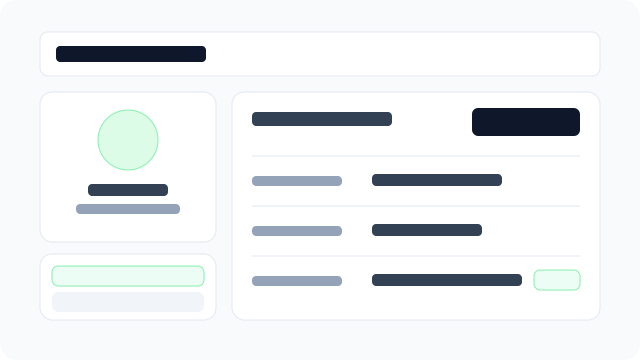
Figure: Photo and section switcher on the left, personal details on the right.
What each field means
Photo
The avatar shown in the header menu and next to your name in lists such as Users & invites. Upload a square JPG or PNG up to 512 KB; the crop dialog lets you reposition and zoom before applying. The photo is saved immediately when you apply the crop — it does not wait for Save changes on the edit form. Removing the photo falls back to your initials (first letter of your first and last name, or the first two letters of your email if the name is empty).
First name / Last name
How you are identified across the workspace: order history, audit logs, assignment lists and the header menu. Both are required — an empty value is rejected, so use a placeholder rather than blanking a field you don't want to fill.
Your sign-in address, shown read-only here. Changing it affects authentication and invitations, so it stays with owners and admins in Settings → Users & invites. The Verified badge means you completed the email verification link; an unverified address still signs in but may miss transactional notifications.
Security: changing your password
The Security section holds a single action: Change password. You must type your current password plus the new one twice. Rules to know:
- The new password must satisfy the platform policy (at least 8 characters with upper case, lower case and a number). A rejected password returns the policy hint rather than a generic error.
- If the current password is wrong you get Current password is incorrect — the form stays open so you can retry without losing what you typed in the other fields.
- Repeated failed attempts are rate limited; wait a few minutes before retrying.
- A successful change revokes every session of your account — all other devices, and this one too once its short-lived token expires. Sign in again with the new password. This is why you don't need to visit Active sessions after a password change.
My profile vs. related screens
Users & invites (owners and admins) edits other people's accounts, roles and status. My profile only ever edits the signed-in user, so every staff role — including STAFF, KITCHEN and CASHIER — can use it.
Active sessions lists the devices where your account is signed in and lets you revoke them one by one, without changing your password. It stays in the Settings navigation so that "who I am" and "where I'm signed in" remain separate screens.
Steps
- Open the avatar menu in the header and choose My profile.
- On Overview, use the photo control to upload or replace your picture.
- Use Edit profile to change your first and last name, then Save changes.
- Switch to Security to change your password.
Permissions
Any active tenant user can open and edit their own profile — no extra permission is required. Deactivated accounts cannot load the page.