The Support assistant answers questions in plain language using published Help content and, when you are signed in, read-only facts about your account.
Where to open it
- Website: a floating chat bubble in the bottom-right of marketing pages, subscriber account areas, and the platform admin shell. Select the bubble to open the panel and keep browsing.
- IVPrior Mobile (Expo): there is no floating bubble. Open Account → Support. You can also start the same chat from Help → Support → Chat with support or Contact support. Account is signed-in only, so guest chat is not available in the app.
Screen overview
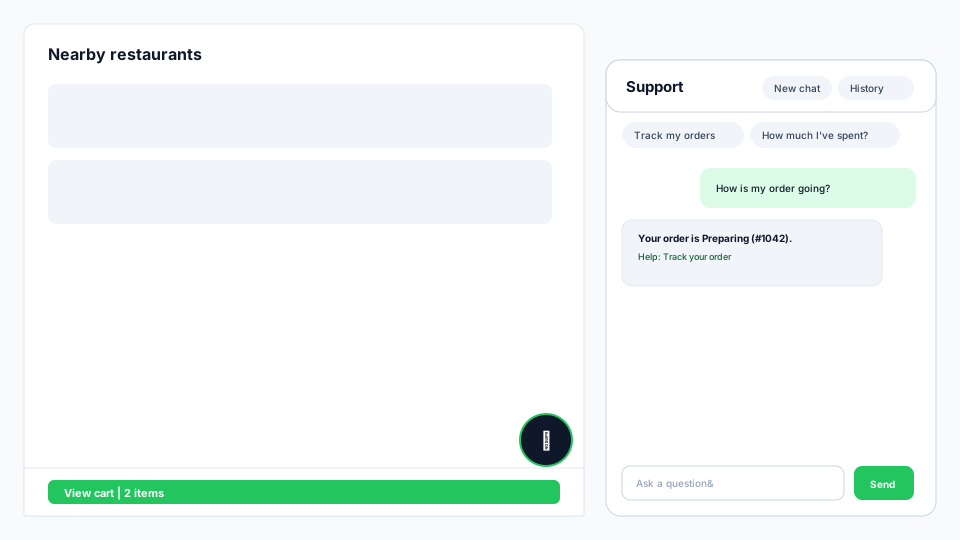
Figure: floating launcher, panel header with New chat and History, suggestion chips, message thread with a Help link, and the composer.
What Support can and cannot do
Support Agent answers using IVPrior's published Help content and, when you are signed in to your subscriber workspace, read-only lookups about your own account — for example your recent scan jobs, scheduled scans, scan quota, and watchlist tickers. It cannot see other Subscribers' data, and it cannot run scans, edit schedules, or change billing on your behalf. For those actions, use the relevant screen in your workspace — Support can point you to the right one, but it never performs writes itself.
IVPrior is a research tool for options opportunity scanning — not a broker or regulated investment adviser. Support will not tell you which ticker or option to buy or sell.
Guest vs. signed in
Guest (not signed in)
- Can ask general "how do I…" questions about the scanner, IV (Implied Volatility), the free trial, and plans.
- Chips shown: How does the scanner work? · What is IV? · How does the free trial work? · How do plans work? · Sign in.
- Conversation history is not saved between visits — closing the tab starts a fresh conversation next time.
Signed in (subscriber workspace)
- Can ask everything a guest can, plus read-only questions about your scans, schedules, watchlist, and scan quota.
- Chips shown: What did my last scan find? · How many scans do I have left? · When do my scheduled scans run? · What tickers are on my watchlist?
- Conversation history is saved — reopen a previous conversation from History, or start a separate thread with New chat.
If you ask a guest question about your plan, watchlist, or account, Support answers from general Help content and shows a Sign in button under its reply — select it to sign in and ask again with access to your own data. Selecting any Sign in chip or button takes you to sign-in and brings you back to the page you were on.
Ask a question
- Open Support: on the website select the chat bubble (mobile web = bottom sheet; desktop = docked panel). In the Expo app, open Account → Support (full-screen).
- Select a suggested chip to send it immediately, or type your own question in the composer and select Send (on the website, Enter sends and Shift+Enter adds a new line).
- Read the answer. When it references a Help article, select the link. On the website that opens a new tab; in the app it opens the article inside Help.
- Select New chat to start a separate thread, or History to reopen a recent conversation.
- On the website, select × or press Escape to close the panel — your conversation is kept, so reopening the widget picks up where you left off. In the app, use Back to return to Account; history remains on your account.
Access and privacy
On the website the widget is available on the marketing landing, subscriber account areas, and platform admin — it is hidden on sign-in, forgot-password, reset-password, and verify-email pages. In the Expo app, Support lives only under Account (and the Help Support tab). Signed-in conversations are private to your account; guest conversations on the website are not tied to any identity and are not shown in your history after you sign in.
See also: What is IVPrior? · IVPrior for traders · Frequently asked questions (web).